Each game that is created within a session is tracked so that we can review it and ensure that everyone has a fair amount of game time. This information can be reviewed as a timeline when looking at a specific session. Depending on your role, you'll either be able to see the information for the whole session or just your own information however interpreting the information is the same.
If you are an administrator the session timeline is accessible from the "Games" tab on the session page, while if you are a player then the information will be at the end of a session attendance page.
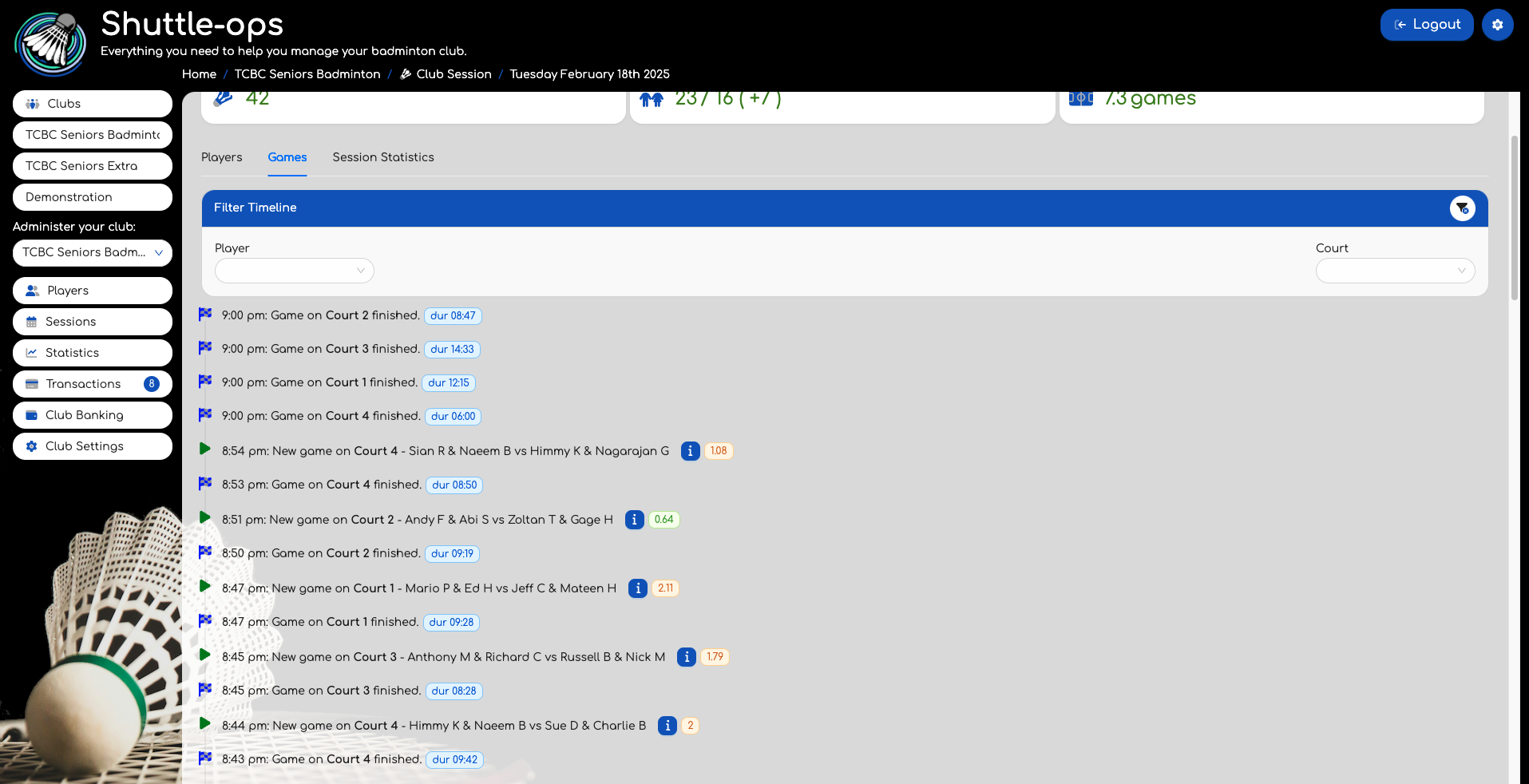
The information is shown is reverse chronological order which means that the most recent event is at the top. Each entry in the timeline will either be a game start, a game end, or player specific information.
The game start events will list when a new game is added to a court. It'll list the court and the players who are playing in this match. Note that the order of the players is not specifically the pairings who played together unless a match result has been entered. At the end of the text you'll see a blue info icon, and a similarity score. The info icon allows you to look at the audit of how those players were associated with this game. In the case of automatic allocation this will include all the details of the players available, the time since they last played and number of games played so that you can confirm the allocation was fair. The similarity score is an indication of how similar the players in this match are, compared to other games that have been played in this session. For example, if there was a score of zero then none of the players have played in any other match together. A score of 1 or 2 might indicate that one pair might have played together before. The higher the score the more similar the match is.
The game end event will show the court that has finished along with the duration of the game. If when finishing the game an administrator has indicated who won the match then this will also be listed on this line.
Using the filter you can filter this timeline by court or by player. If you have selected a player then you will also see the player specific information.
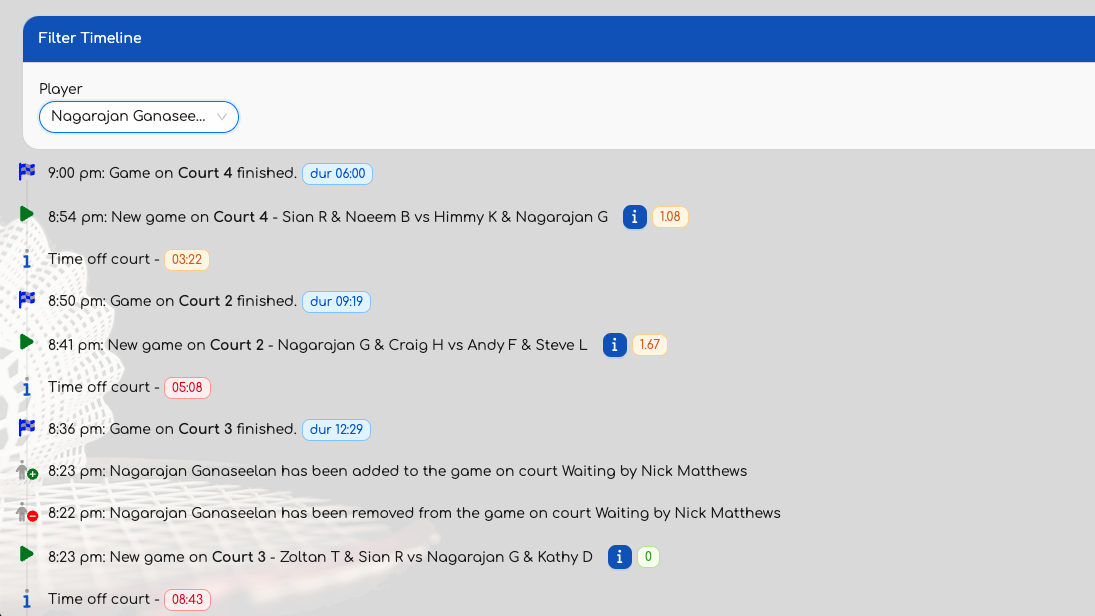
The additional information will appear in amongst the game start and end events and will additionally list the time off court for the selected player and any instances where the player was manually added or removed from a game. This additional information can be very useful to confirm that the player is getting a fair amount of game time, not being left off court for too long, and not being manually removed from the allocation and therefore missing out from the automatic allocation that will balance game time across all players in the club.
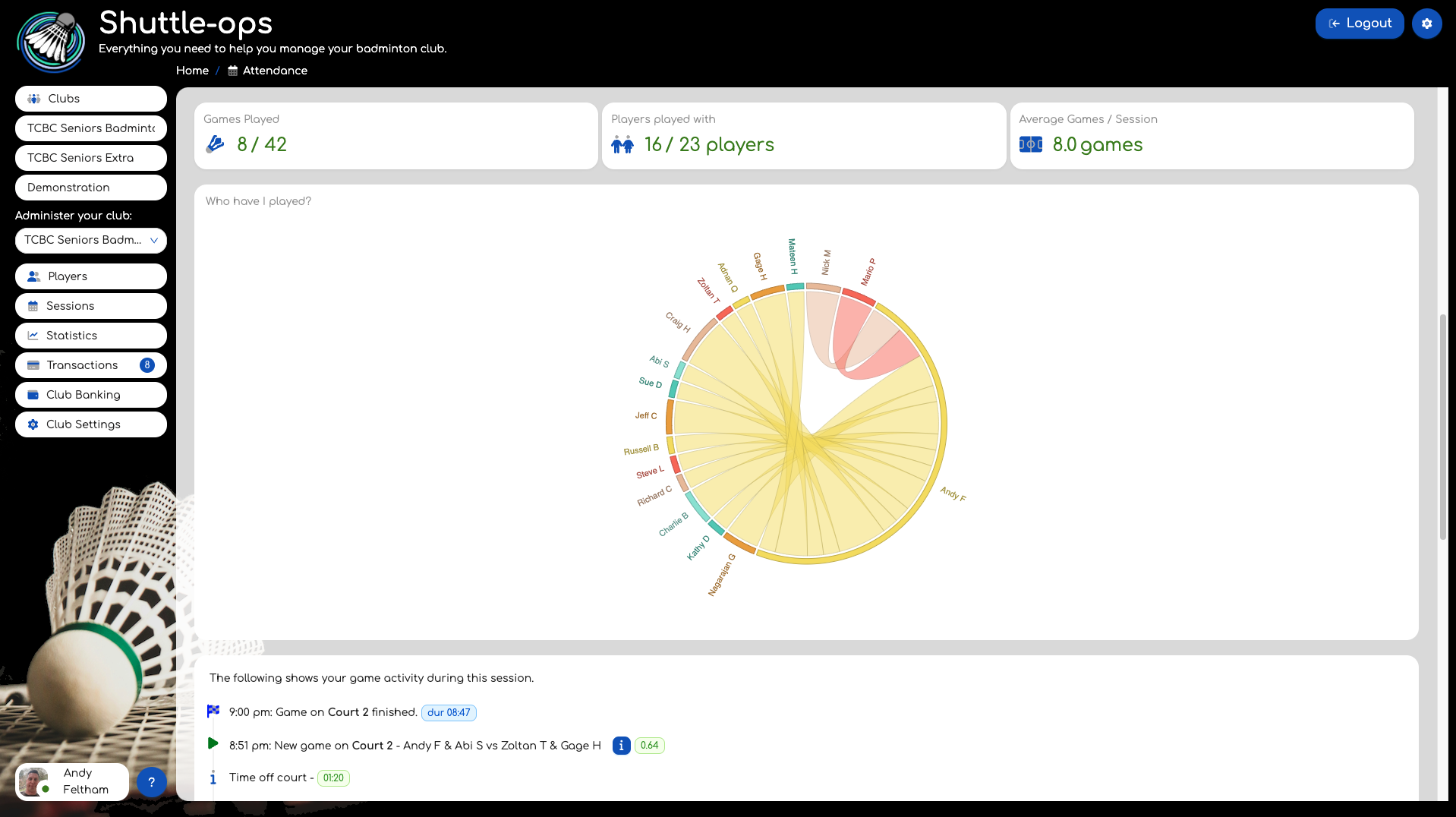
If you are a player looking at your session attendance then you will get the same information but it will already be filtered to you. You will also see some simple stats showing the number of games you've played, how many players you've played with and a chart showing the distribution of those games with the other players. This chord diagram will show a thicker chord if you've played with the other player at the end of the chord more times than you have with others.
This chord diagram is also available under the "Session Statistics" tab when an administrator views the session information. In this instance its showing how each player played with the other players, rather than focused on one player.
Was this article helpful?
That’s Great!
Thank you for your feedback
Sorry! We couldn't be helpful
Thank you for your feedback
Feedback sent
We appreciate your effort and will try to fix the article