Welcome to the guide for creating sessions on ShuttleOps! Sessions are your go-to tool for tracking player attendance, logging costs, and keeping everyone in the loop about upcoming games. Let’s dive in!
What is a Session?
Sessions are simply game events that you create for your club. They include details like:
- Date and Time - When’s the game happening?
- Location - Where’s it happening? Make sure to add locations in the club settings first.
Step-by-Step: Creating Your First Session
Setting Up Locations
Before creating a session, check that the session location is already added under the Club Locations tab on the Club Settings page. This is essential because the system will only let you assign a session to an existing location.
If you haven't got one, click on the plus sign and use the Google maps that it presents to search for your location. After adding the location you should see it in the last, as below.
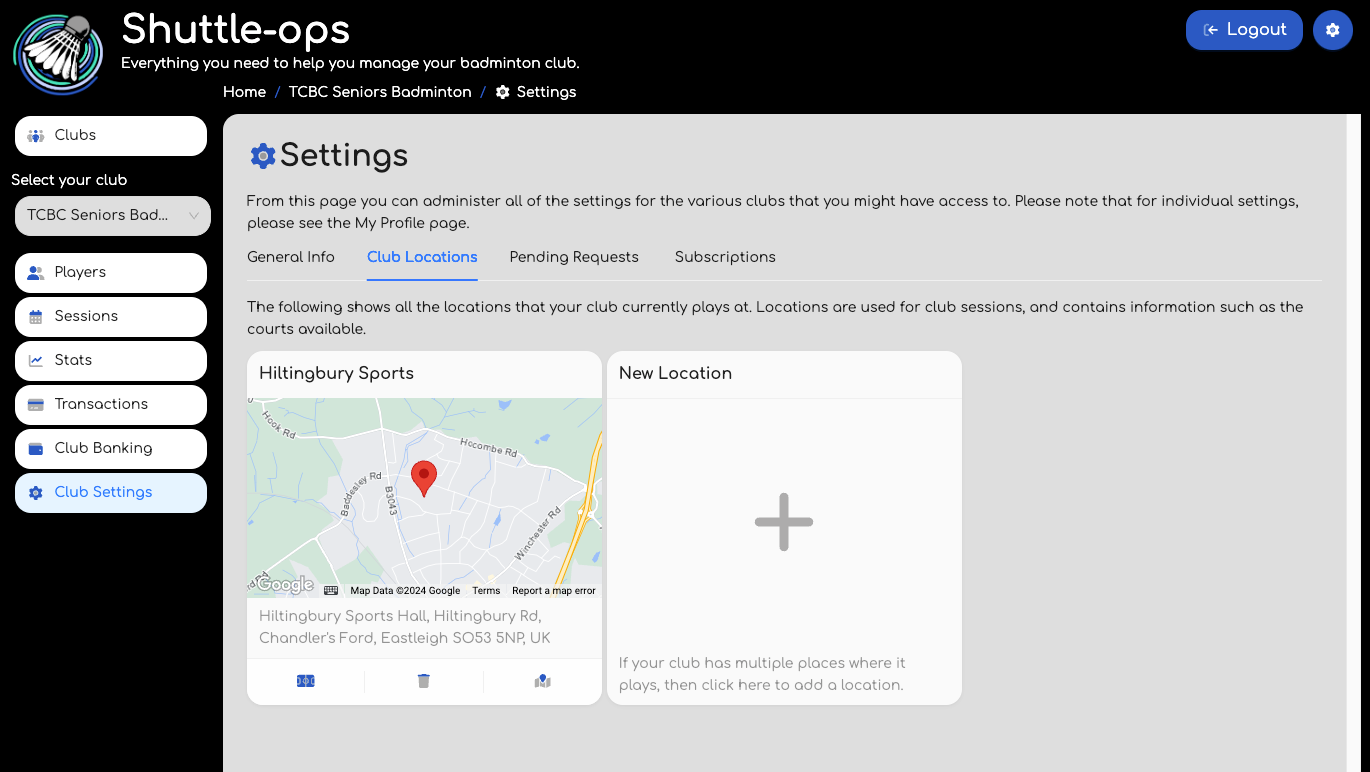
Once you've got a location you'll also need to add courts to it. To do this, click on the left icon for the location and add as many court names as you need. These are specific to you, even if the location is common.
Note a "Virtual court" allows you to allocate players to a game before the games on the previous courts have finished. These work slightly different to normal courts and are very handy to help speed things along. If you want to have a virtual court, just check the checkbox next to the name.
Creating a New Session
Once your location is set up, you’re ready to create your session. Navigate to the Sessions page and use the page menu in the top right hand corner and hit “New Session.” You'll be taken to a new page with a wizard that will step you through the process of creating a session.
In the session creation wizard you will find :
- Date, Time & Location.
- Costs.
- Session Information
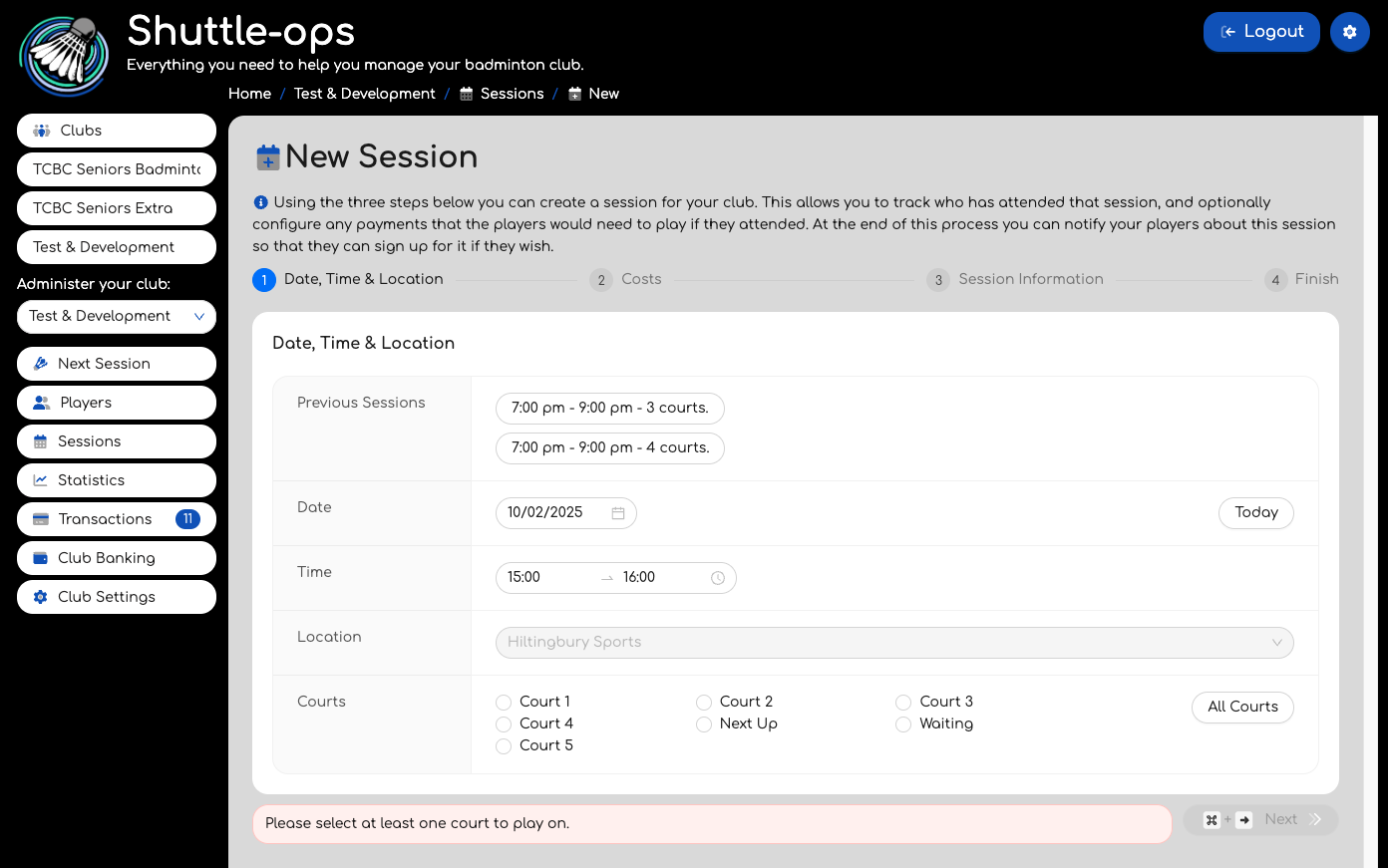
You can step through the wizard using the buttons in the bottom left & right. If you have previous sessions they'll be listed at the top of the first page. Clicking on these buttons will pre-select the same values as before so that all you need to do is change the date.
Cost to Club
On the second screen you can track how much each session costs your club — perfect for budgeting at the end of the year! You can also select to charge players or not. This is optional. If you do decide to charge players there are a couple of options :
- Cost Recovery - Divide the session’s total cost equally among players who attended. Select the "Only cover costs" option if you want to use this approach.
- Pay as You Play - Charge each player a set fee. This fee can be different for club members and non-members
If needed you can also pass any transaction costs on to the players. This will vary depending on if the charge is taken immediately after the session, or collected at the end of the month. More on this can be found in our guide to subscriptions. If a player has a club subscription, they won’t be charged the pay-as-you-play fee but will still need to contribute to the cost recovery if that’s how the session is set up.
Limiting Player numbers
On the third screen you have the option of limiting the number of players attending the session. This affects players being able to sign up to the session ahead of time.
Finishing the setup
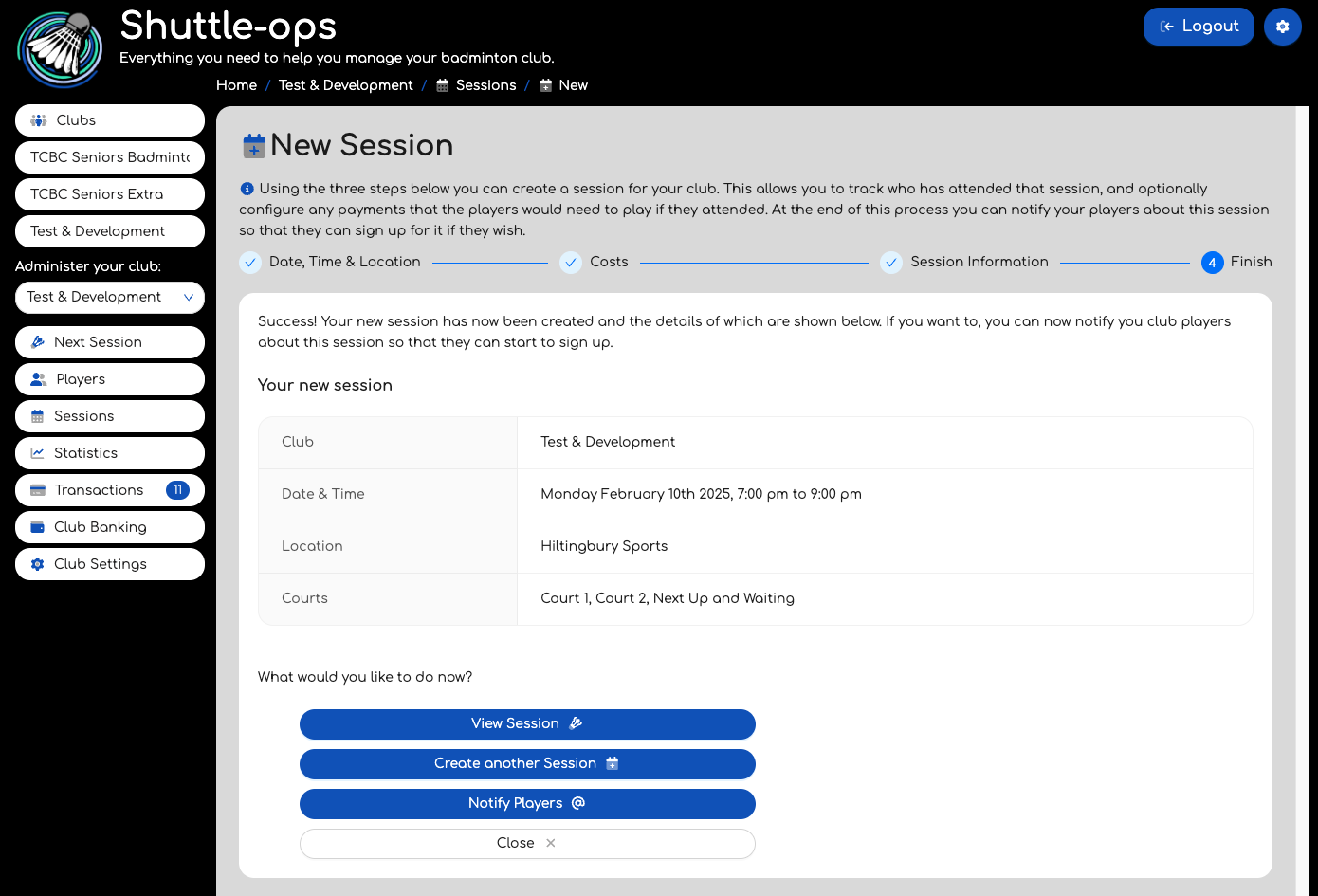
On the final screen you will see a summary of what has been created. From here you can easily create another session, or view it. Note that also there is an option to notify players about this session. Doing so will send all registered players an email with a unique link allowing them to mark that they are planning on attending.
Viewing & Managing Sessions
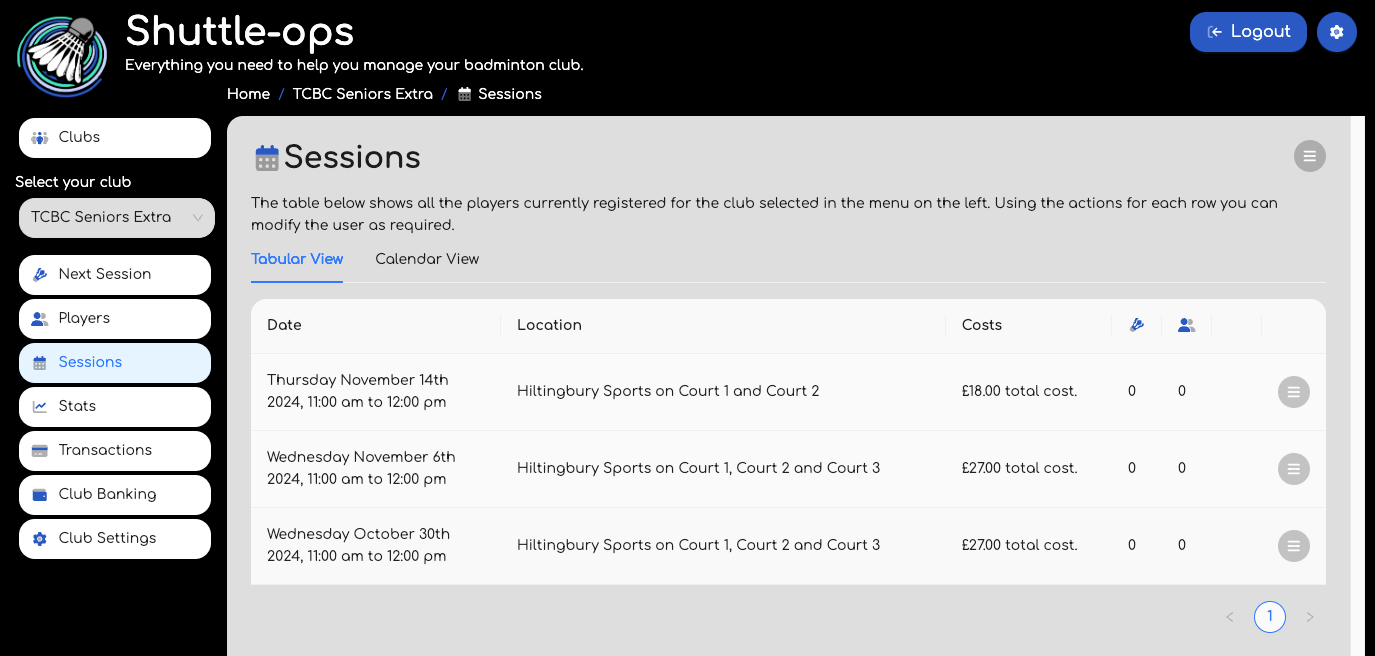
All your created sessions are displayed on the Sessions page. Plus, if there’s an upcoming session, you’ll see a new “Next Session” button in the menu, making it a breeze to jump to the next scheduled game.
Was this article helpful?
That’s Great!
Thank you for your feedback
Sorry! We couldn't be helpful
Thank you for your feedback
Feedback sent
We appreciate your effort and will try to fix the article