Once you've created a session in ShuttleOps, you can easily track attendance, manage games, and view insightful stats to keep your club running smoothly. Here’s how to get the most out of your session pages.
Navigating to Your Session
To start working with a session:
- Next Session: Click on the “Next Session” menu option to jump directly to the upcoming session, if there is one.
- Sessions Page: Or, head to the Sessions Page, where you can use the View Session menu item for any session listed.
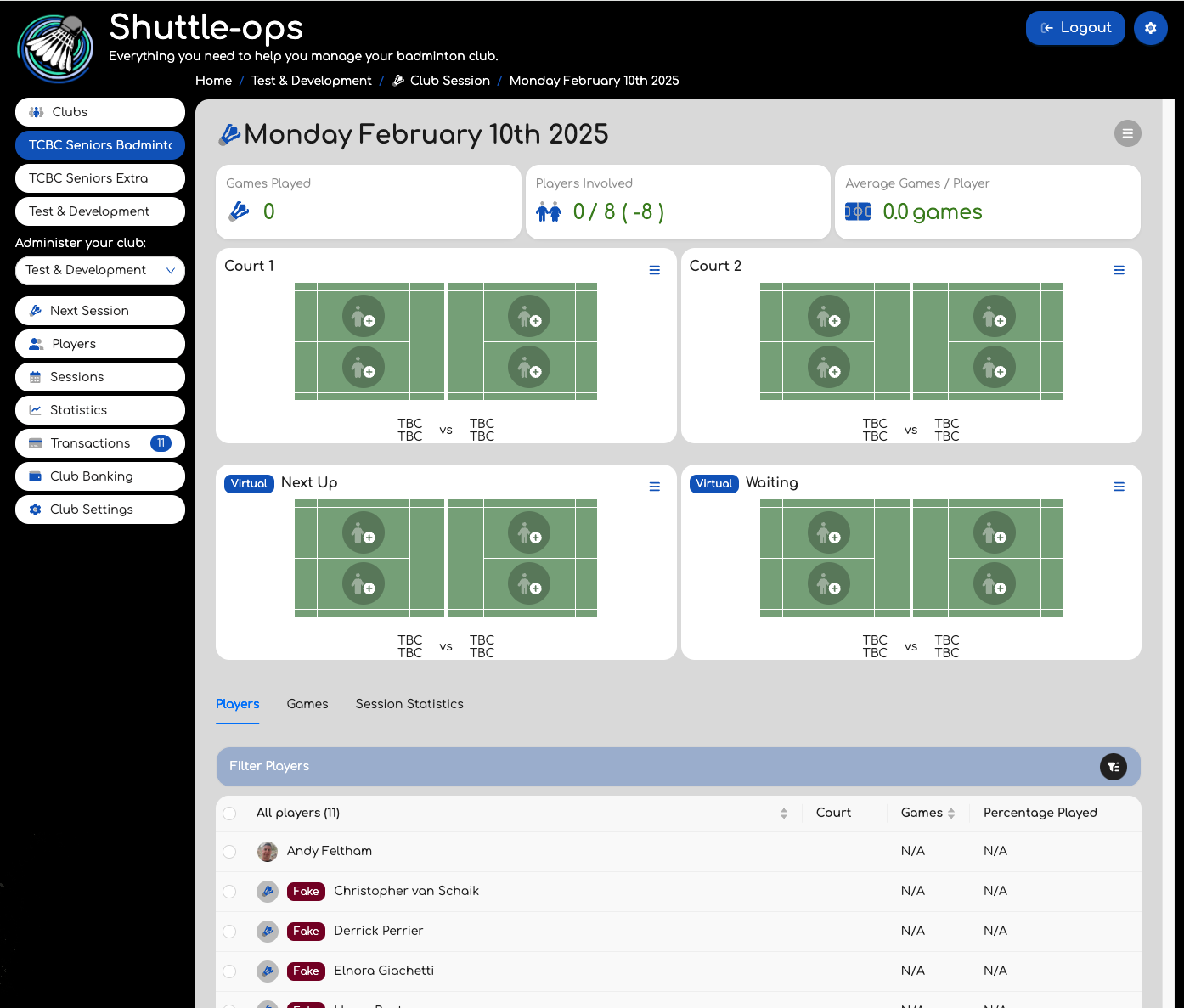
Both options will take you to the selected session page, where you’ll see the available courts and three main tabs:
- Players - Manage attendance and add players to the session.
- Games - Track each game, including who’s playing and the game status.
- Session Statistics - Get a complete breakdown of game stats, including who has played with whom.
The Players Tab
In the Players tab, you’ll find a list of all players in the club. Using the checkbox next to each player’s name, you can:
- Mark Attendance: Add them to the session by checking their name. If you accidentally add someone, simply uncheck them to remove them. Checked players will become available for selection in the Games tab.
- Take them out of the session: If a player needs to leave early, click the Leave icon next to their name to mark them as having left. This will make them unavailable for further games, but note that if they’ve already played in a game, they cannot be removed entirely from the session.
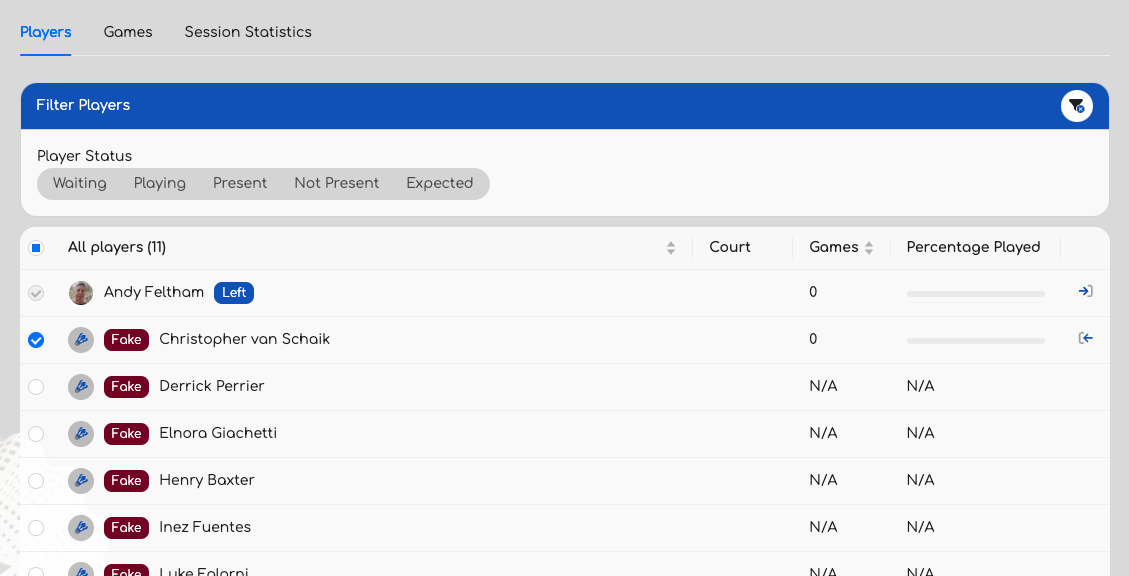
You can also expand the "Filter players" section to easily filter the data available. Here you can filter the players by those waiting to play, those currently playing, those at the session, those not at the session, and any players who are expected as a result of marking their attendance.
The Games Tab
In the Games tab, you can see an activity log of the session’s games. Each game records:
- Players: See who participated in each game.
- Game Status: Track games in progress and games that have finished.
You can add players to games in a few ways:
- Select manually: Click any player space on the court and you'll be given a popup window of players to choose from. Changing this list and hitting save will either add the player, or swap them if there was already a player there.
- Auto-Select: Use the court menu to automatically find a compatible group of players who are ready to play, ensuring balanced matchups. You can do this either with an empty court, or you can add a couple of seed players and then ask the system to fill the remaining slots.
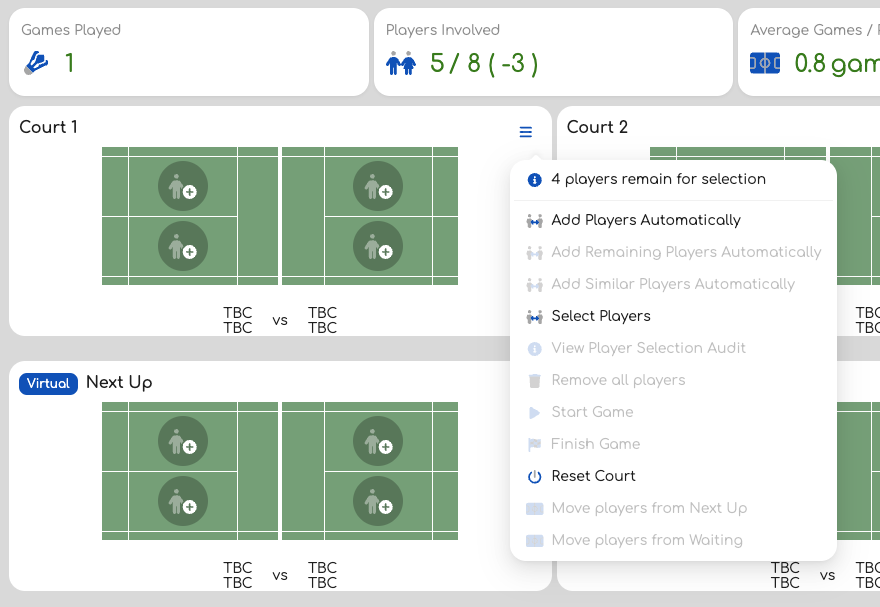
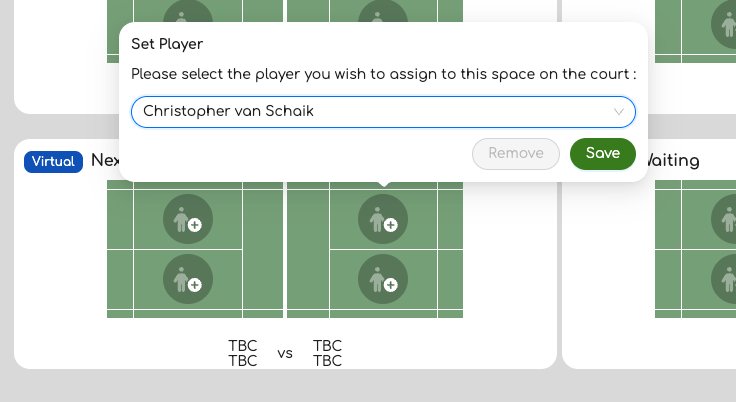
Once a court has four players, you’re ready to start the game! Click on the play icon next to the court to start things going. Any players allocated to a court are not available for selection on any other court.
When the game is done, use the Finish option in the court menu or the finish icon. This will release the players so they can participate in other games. A pop up window will appear after the game has finished to allow you to mark who won the game. This is optional.
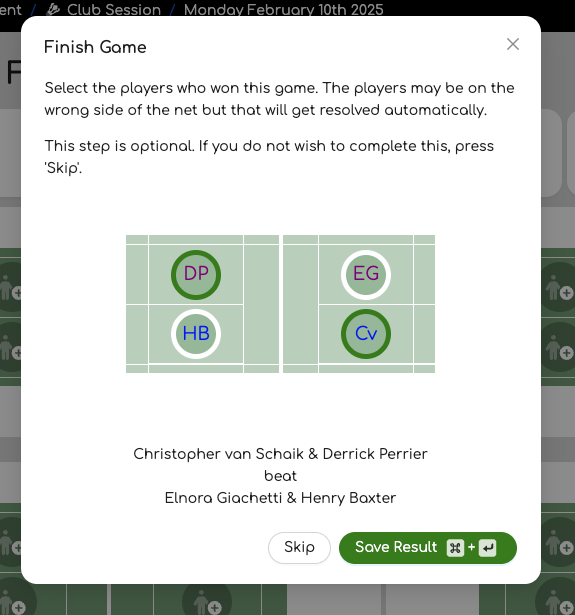
Select the two players who have won the game. It doesn't matter if they weren't on the same side of the net when the court was originally allocated. This will get corrected after you've saved the match result.
The Stats Tab
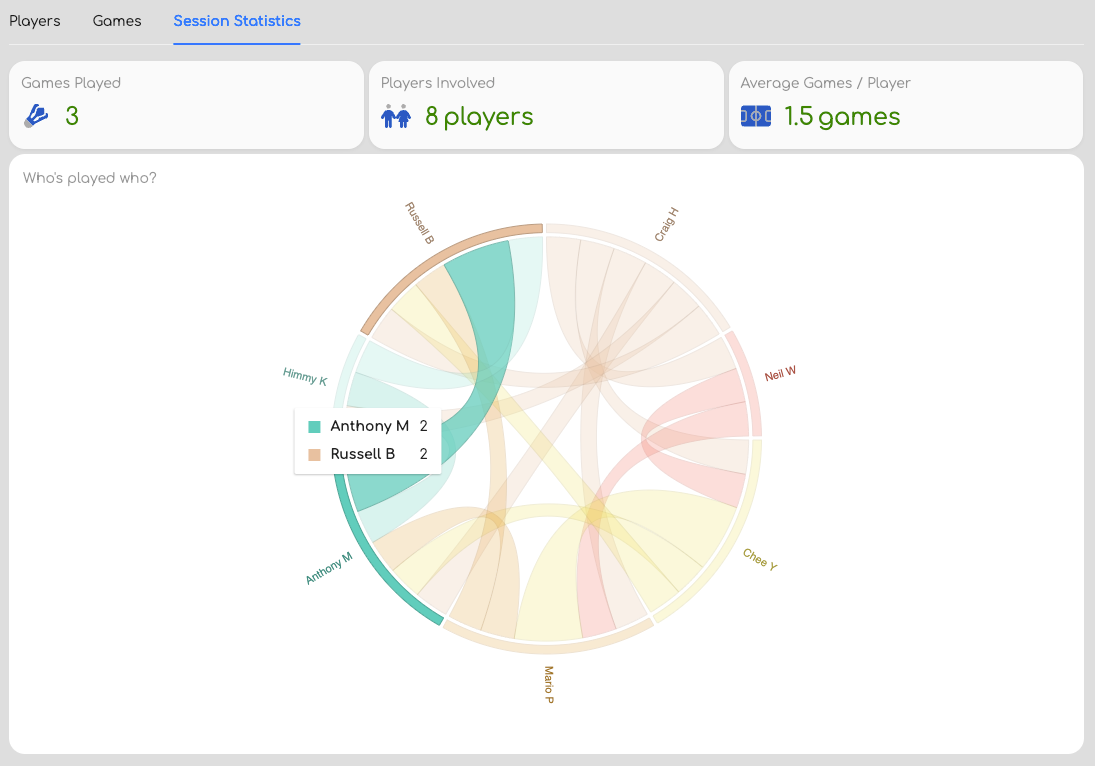
Finally, the Statistics tab provides an in-depth breakdown of the session’s activity:
- Games Played: Track the total games completed during the session.
- Player Involvement: See the number of players who joined games.
- Chord Graph: Visualise partnerships and matchups with a dynamic chord graph showing who played with whom.
Ending a Session
A session will automatically end at its scheduled time, but you can manually end it early if needed. Use the Page Menu in the top-right corner of the session page to close the session. After ending, players will be removed from courts, and no further changes can be made.
If a player has opted-in to the notifications, an email will be sent to them at the end of the session reporting on their stats for the session.
Was this article helpful?
That’s Great!
Thank you for your feedback
Sorry! We couldn't be helpful
Thank you for your feedback
Feedback sent
We appreciate your effort and will try to fix the article