In order to allocate players to games within your club sessions they will need to be associated with your club. In some cases you may have added the players manually but in other situations the player might have already registered with ShuttleOps. In this case they may have requested to join your club.
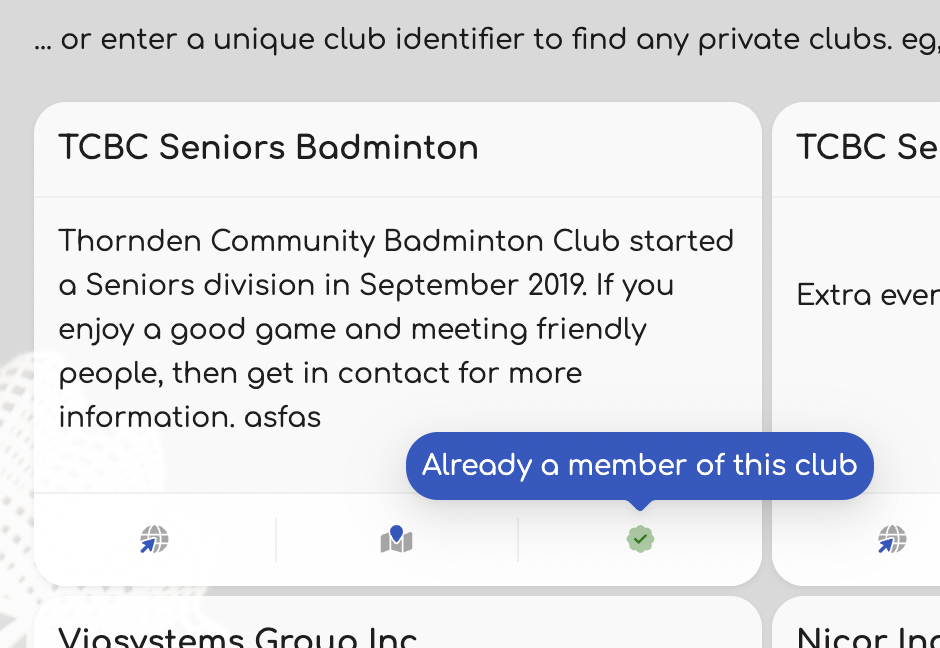
When visiting the clubs page, the right hand icon of every club tile will show the current membership status for the logged in user. If you are not a member of this club already then clicking on this icon will allow you to request to join this club.
When a player does this, the owner of the club will be sent an email notification requesting that they approve or deny the request as appropriate. In addition to this notification you'll also see a badge appear in the menu alerting you to the request. Clicking on the 'Club Settings' link will then take you to the Pending Requests tab where all the membership requests are shown.
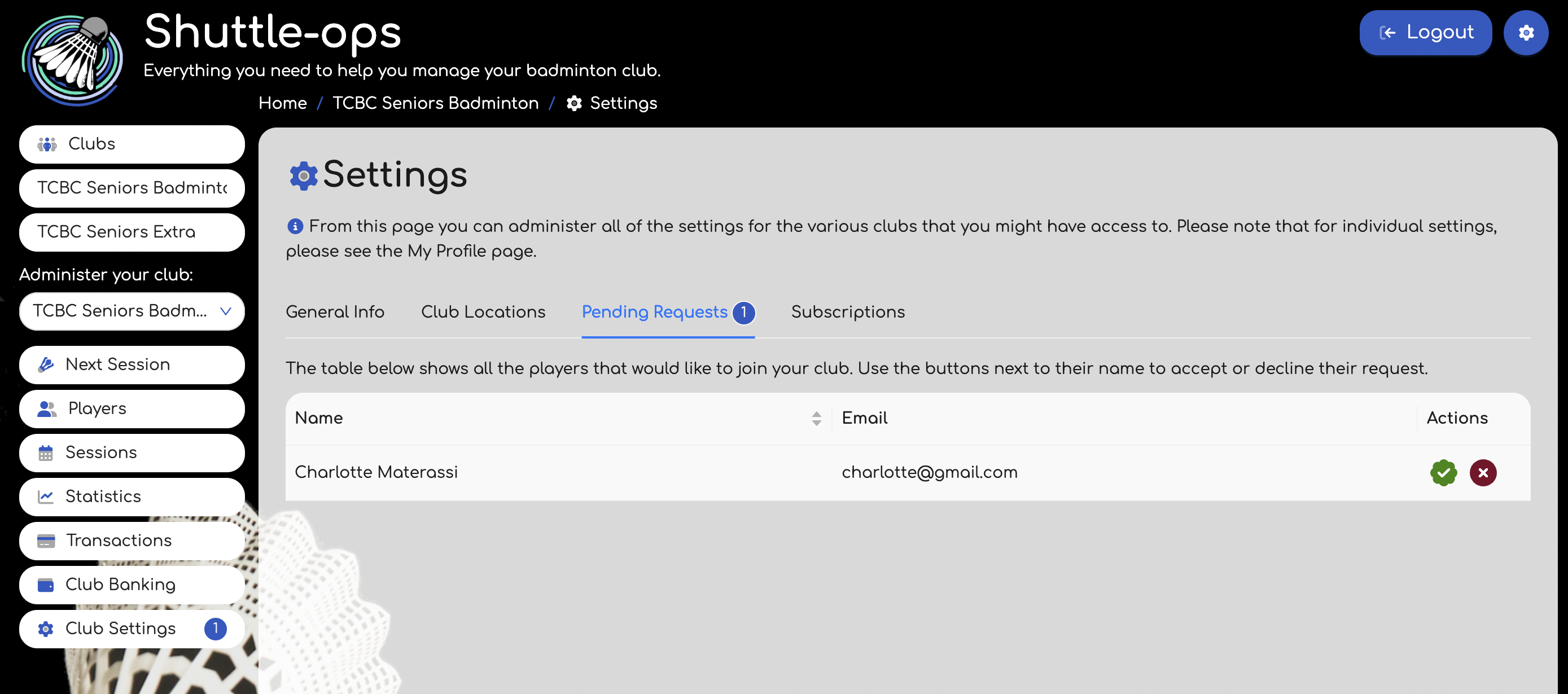
At this point you have two options, either approve or deny the request. In each case the user will be notified about the decision. If you have chosen to accept their request they will then be added to the club and they will get an additional menu item that allows them to see your club schedules and statistics. They'll also be included in any notifications about sessions if they have enabled notifications.
Was this article helpful?
That’s Great!
Thank you for your feedback
Sorry! We couldn't be helpful
Thank you for your feedback
Feedback sent
We appreciate your effort and will try to fix the article